Designing a Concrete Column in Dove
Dove is a specialized application that connects with Etabs models to assist with the reinforcement design process for concrete structural elements like columns, walls, and spandrels. This tutorial will walk you through the steps to design a column, from connecting the Etabs model to customizing the column's properties and exporting the results.
Setting Up the Model and Load Combinations
Before designing, you must first import your Etabs model and define the load combinations to be used for ultimate and fire designs.
- Import the Model: Open Dove and click 'New from Etabs'. You will be presented with a dialog to set up the connection with Etabs. If your Etabs API is correctly configured, you shouldn't need to change the default options. You can select a connection method, such as '.NET Core' for the fastest results. If your Etabs model is already open, you can double-click its instance from the list to automatically connect and import the model.
- Select Load Combinations: Click on the 'Load Combinations' tab next to the 'Levels' tab. Review the combinations imported from Etabs. By default, all will be selected for ultimate design and deselected for fire design.
Initial Design Check and Inspection
Dove provides an initial design check using minimum column reinforcement before you refine the model details.
- Run the Check: Click 'Check Columns at Selected Levels'.
- View Utilization: Navigate to the eyeball icon (display options) and turn on 'column utilisation' to see the results.
- A value greater than 1.0 indicates the column is overstressed and is displayed in red text.
- The utilization for each individual load combination can be viewed using the 'Display Combinations' dropdown.
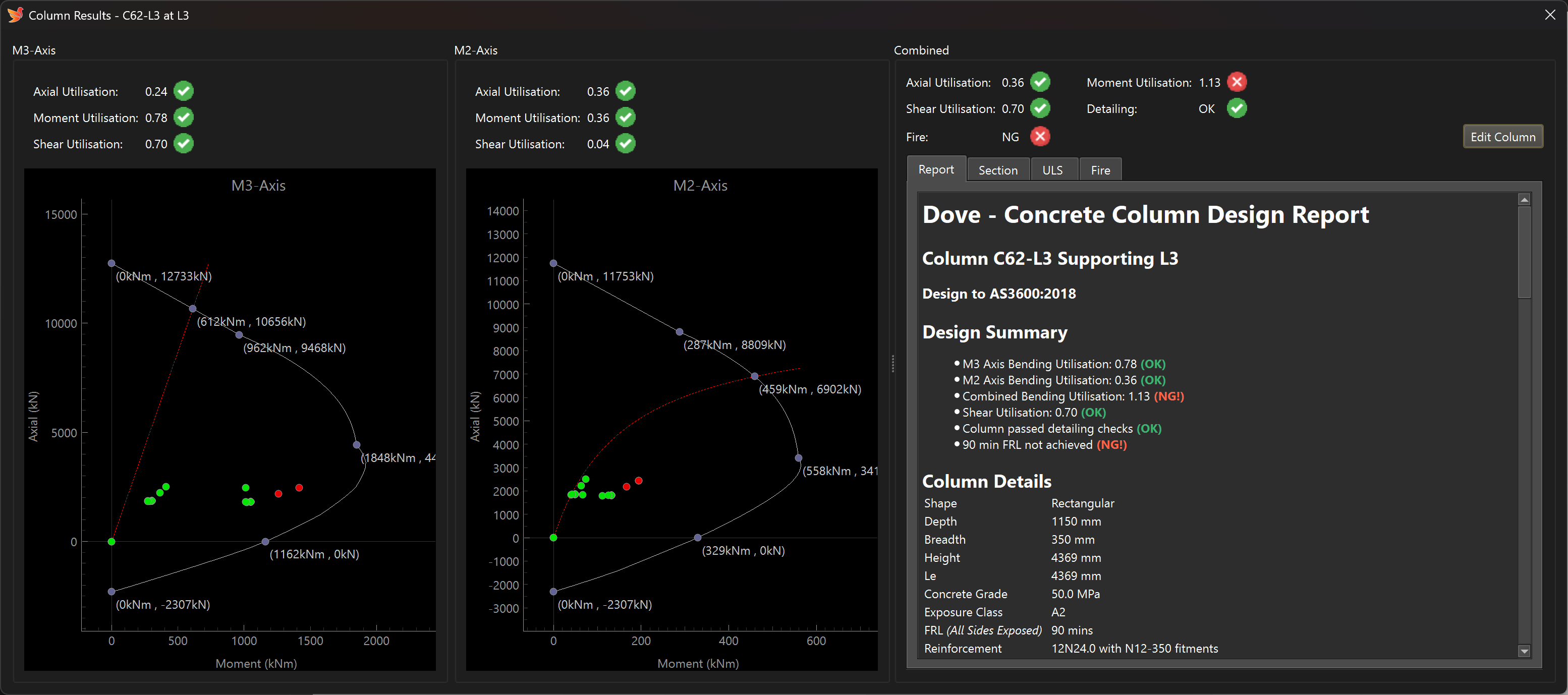
- Inspect Capacity: To see detailed results for a specific column, right-click on it and select 'Inspect Capacity', or hold the Alt key and double-click the column. This opens a design results dialog showing capacity plots for both column axes, a combined loading summary, and a design report.
Customising Column Properties
The column properties dialog allows you to modify the geometry, reinforcement, material, and design properties.
Accessing the Properties
- Either double-cick the column, or from the design results dialog, click 'Edit Column'.
- Alternatively, you can select multiple columns by dragging a box, right-click, and select 'Properties'. This allows you to edit columns across multiple selected levels as well.
Managing Column Types
Dove uses 'Types' to group column designs, which simplifies applying consistent properties across multiple elements.
- Custom (Default): All elements start as 'Custom', meaning no type is defined, and all type parameters (left side of the dialog) are directly editable.
- Creating a Type: Click 'Add Type' to create a new type and enter the type editor dialog to define its type parameters.
- Once a type is assigned, the type parameters become locked in the main dialog, and you must click 'Edit Type' to change them. Any changes to a type are reflected in all other elements assigned to that same type.
Streamlining the Design Process
To efficiently apply the design to other columns, use the following features:
- Cascade Properties: Right-click the column you just edited and select 'Cascade properties' -> 'Up Chain' or 'Down Chain' to copy the properties to all columns above or below in the same chain.
- Format Painter: Select the column you want to copy properties from, click the paint brush icon, and then click on other columns to copy the properties over.
Exporting the Design Report
After completing your design, you can export spreadsheet design summaries or generate detailed design reports.
- Export Spreadsheet Summary: Go to the 'Export' menu and click 'Column Design Summary'.
- Export Single Design Report: Right-click on the column and select 'Design report' -> 'Export Report' to save an individual PDF report.
- PDF Report Batch Export:
- Right-click on the column and select 'Include in Batch Export'.
- Go to the 'Export' menu and click 'Design Reports'.
- A diagram will appear, indicating which columns are marked (ticked) for export; you can add more by clicking their boxes.
- Select your export directory and click 'Export column reports' to generate individual PDF reports for each selected column.
